Gated Downloads
Gate downloads — or any part of a post — behind a form, capture leads, and (with Pro) automate everything that happens next.
Introduction
Gated Downloads turns any file download into a lead magnet. You create a “gated file”, place it with a shortcode, block, Elementor widget or automatic placement, and visitors must submit a short form before the download unlocks. Every submission is stored as a lead you can search and export.
It also works without a file at all. The content locker hides part of a post behind the same form — the second half of a guide, a pricing table, a coupon code — and a form with no file attached becomes a plain email opt-in.
It works with any WordPress theme — the capture modal is rendered in the site footer and styled independently, so it never fights your theme's CSS. The free plugin is fully functional; Gated Downloads Pro adds popup triggers, double opt-in, lead lists, automation, integrations, spam protection, and protected links.
Requirements
| WordPress | 6.2 or higher |
|---|---|
| PHP | 7.4 or higher |
| Permissions | An administrator account (manage_options) to configure the plugin |
Installation
- In your WordPress admin, go to Plugins → Add New.
- Search for “Gated Downloads”, click Install Now, then Activate.
- A new Gated Downloads menu appears in the sidebar. You're ready to create your first gated file.
Prefer manual install? Upload the templatesell-gated-downloads folder to /wp-content/plugins/ and activate it from the Plugins screen.
On activation Gated Downloads registers the Gated Files post type and a leads database table automatically — no setup wizard required.
Quick start
- Go to Gated Downloads → Add New and give your gated file a title (e.g. 2026 Pricing Guide).
- In the Gate settings box, choose your file — upload from the Media Library or paste a URL — and set a button label.
- Publish. Copy the shortcode shown in the sidebar, e.g.
[tslgd_download id="123"]. - Edit any page or post, paste the shortcode (or add the Gated Download block), and update.
- Visit the page — click the button, and the capture modal appears. Submit it, then check Gated Downloads → Leads.
Tip: New to it? On Gated Downloads → Leads a setup checklist tracks your progress, and a one-click Create demo content button builds a sample gated file and page so you can try the whole flow instantly. To reuse a setup later, hover any file in the list and click Duplicate.
Creating a gated file Free
A gated file is the unit Gated Downloads protects. Each one has its own file, button label, and shortcode.
File source
In the Gate settings metabox you can pick between two sources:
- Media Library — click Select file to choose or upload an attachment. Best for PDFs and files hosted on your site.
- External URL — paste any link (e.g. a file on cloud storage). Gated Downloads delivers it after the form is submitted.
No file? No problem. Leave the file source empty to use the form as a simple email opt-in / subscribe form — the visitor's details are captured and your success message (or redirect) shows after submit, with no download involved. Set the button and submit text to “Subscribe”, and show just the Email field.
Button label
The text shown on the button that opens the modal — for example Download the guide. If left empty, the default from Settings is used.
Form fields & behavior Free
Every gated file is its own form. In the Form Fields & Behavior box on the file's edit screen you choose exactly which fields it collects, in what order, and how it behaves after submit — independently of every other form. Leave the overrides off and the form simply inherits your global Settings, so existing forms keep working unchanged.
Choosing & ordering fields
Turn on Customize the fields for this form, then tick the fields you want and drag to reorder them. Mark any field Required. The standard field set is:
| Field | Stored as |
|---|---|
| Full Name | Name column |
| Email Address (always on) | Email column |
| Phone Number | Phone column |
| Company | With the lead |
| Job Title | With the lead |
| Website | With the lead |
| Country | With the lead |
Need field types beyond text — dropdowns, long-text boxes, and unlimited custom fields? Those live in Gated Downloads Pro.
Messages & behavior
Turn on Customize messages & behavior to override, per form:
| Option | What it does |
|---|---|
| Success message | The confirmation shown after a successful submit. Blank = inherit the global default. |
| Submit button text | The label on the form's submit button. Blank = inherit. |
| Redirect URL | If set, the visitor is sent to this URL after submitting instead of the file download starting. |
Notification
Turn on Customize the email notification to send this form's leads to a different address (or to silence notifications for this form only). Otherwise the global notification applies.
Categories Free
Gated files support a fully custom taxonomy — nothing is hardcoded. Create whatever categories fit your library (Guides, Datasheets, Case Studies…) under Gated Downloads → Categories, then assign them when editing a file. Categories are stored with each lead so you can see which topic drives sign-ups.
Displaying a gate Free
There are five ways to place a gate — pick whichever fits your layout. They all render the same button and modal, so leads and analytics work identically no matter which you use.
Shortcode
Place this anywhere shortcodes run — a page, post, or text widget:
[tslgd_download id="123" label="Download the guide"]| Attribute | Required | Description |
|---|---|---|
id | Yes | The ID of the gated file (shown in the editor sidebar). |
label | No | Overrides the button text for this instance only. |
The Gated Files list has a Shortcode column — click any shortcode to copy it to your clipboard.
[tslgd id="123"] is a short alias of [tslgd_download id="123"] — both render the same form, so use whichever reads better in your content.
Block
In the block editor, add the Gated Download block, then pick a gated file from the dropdown and (optionally) set a custom label. The block renders the same button and modal as the shortcode.
Inline link New in 1.3.0
Sometimes a button is too heavy for the layout — mid-sentence, inside a list, or in a table cell. Wrap any wording in [tslgd_link] and it becomes a gate trigger instead:
[tslgd_link id="123"]Download the price list[/tslgd_link]The text keeps your theme's link styling, so it blends into the paragraph around it.
Elementor widget New in 1.3.0
If Elementor is active, a native Gated Downloads widget appears in the widget panel with a file picker, an optional label override, and an alignment control. The widget only registers when Elementor is present, so it costs nothing on sites that don't use it.
You can place the same gated file on multiple pages — leads record which page (source URL) each submission came from.
Content locker Free New in 1.3.0
Instead of gating a file, you can gate a section of a post. Wrap the part you want to hold back in [tslgd_lock]:
[tslgd_lock id="123"]
The rest of the guide, a pricing table, a coupon code…
[/tslgd_lock]
Visitors see a blurred placeholder with an Unlock content button. They submit the same capture form, and the content appears in place, without a page reload. Returning visitors are recognised and see it unlocked automatically for 30 days.
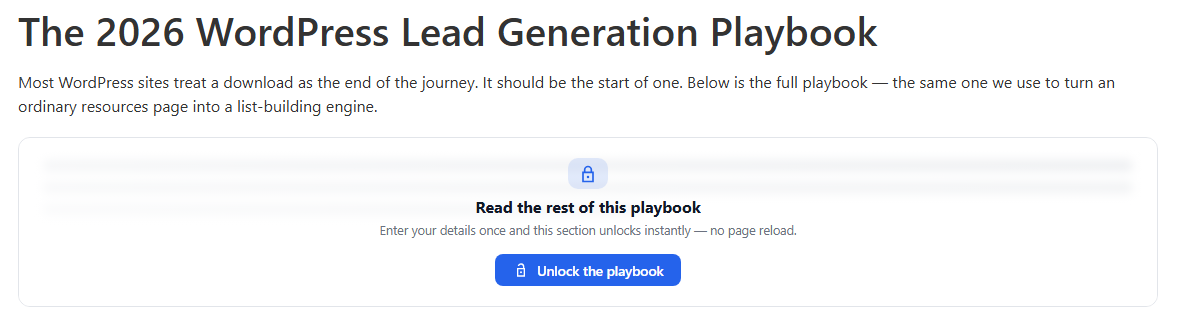
The locked content is never present in the page source. It is fetched only after a successful submission, so “view source” cannot reveal it and full-page caching cannot leak it to the next visitor.
| Attribute | Required | Description |
|---|---|---|
id | Yes | The gated file (or no-file form) whose capture form unlocks this content. |
message | No | Headline shown on the locked placeholder. |
hint | No | Smaller supporting line under the headline. |
button | No | Overrides the unlock button text. |
teaser | No | Visible teaser text shown above the blur. |
A gated file used purely for locking doesn't need a file attached — leave the file empty and the form works as a pure content unlock.
Automatic placement Free New in 1.3.0
If you want a download button on every post, you no longer have to paste a shortcode into each one. Under Gated Downloads → Settings → Automatic Placement, choose a file and it is added to post content automatically.
| Option | What it does |
|---|---|
| Gated file | Which file to place. |
| Position | Before or after the post content. |
| Post types | Which content types receive it (posts, pages, custom types). |
| Categories | Optionally limit it to selected categories. |
| Heading | An optional heading rendered above the button. |
| Excluded IDs | Specific posts that should never show it. |
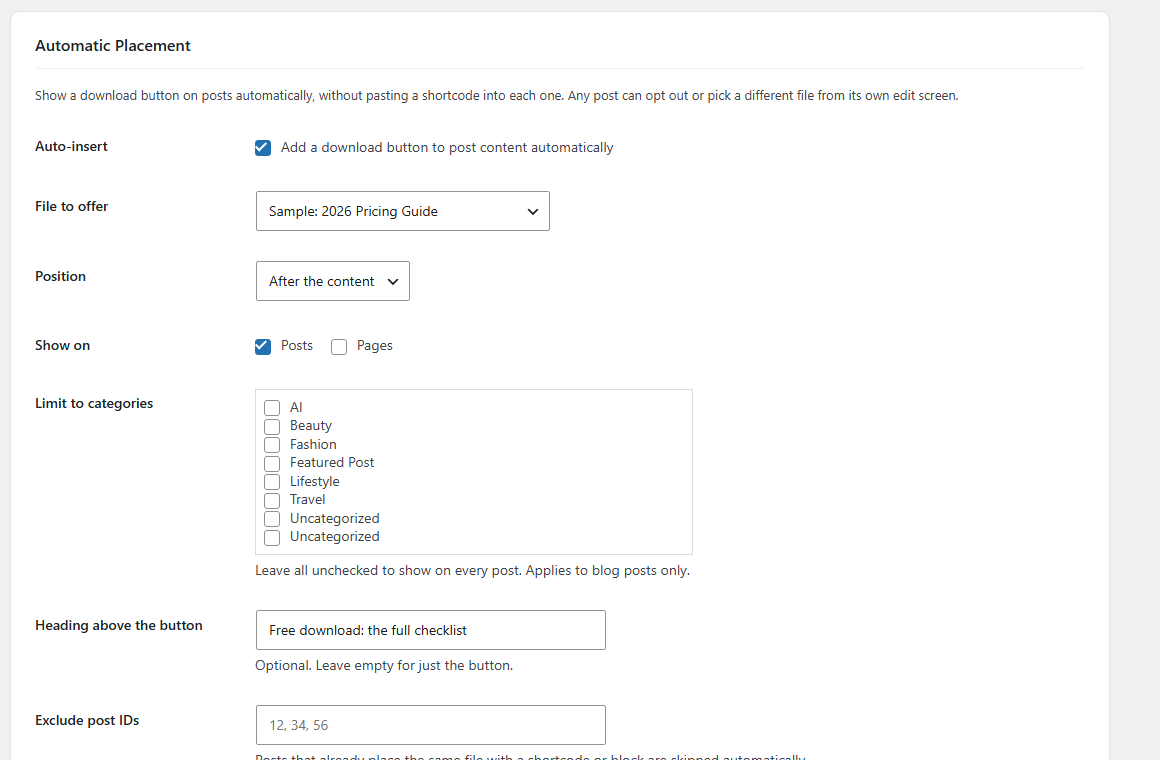
Every targeted post also gets a Gated Downloads box in the sidebar with three choices: use the default, hide the button here, or offer a different file on this post only.
Posts that already place the same file with a shortcode or block are skipped automatically, so you never end up with two identical buttons on one page.
Settings Free
Under Gated Downloads → Settings you set the global defaults. Any form can override these on its own edit screen (see Form fields & behavior); forms that don't override inherit the values here.
| Setting | What it does |
|---|---|
| Default form fields | The fields new forms start with, and the fallback for forms that don't customize their own. Toggle which appear and whether they're required. Email is always collected. |
| Consent checkbox | Show a GDPR-style consent line with your own wording; store whether each lead agreed. |
| Appearance (brand colors) | Set a primary color (download & submit buttons, links, focus highlights, modal header icon) and a modal header color; a matching gradient is generated automatically. Colors apply everywhere the gate appears. |
| Admin notifications | Email a chosen address whenever a new lead is captured. |
| Download email | Automatically email each lead their download link — a clean, ready-made message with the file name and link (on by default; skipped for no-file subscribe forms). Pro's autoresponder replaces it with your own subject, message, and placeholders. |
| Default button label | The fallback label used when a gate or shortcode doesn't set its own. |
| Show download count | Display “Downloaded 1,204 times” under the button as social proof. Counts real file deliveries, not form submissions, and stays hidden until a file has at least one download. Off by default. |
| Automatic placement | Add a download button to post content automatically — see Automatic placement. Off by default. |
| Delivery | How the file is handed over after submission (direct link / redirect). |
| Delete data on uninstall | When enabled, removes the leads table and settings if you delete the plugin. |
Leads & export Free
Every submission appears under Gated Downloads → Leads in a searchable, sortable table: date, name, email, phone, form, category, and consent. A Details column shows any extra fields the form captured (Company, Job Title, Website, Country…). Before your first lead arrives you'll see a short “how it works” guide.
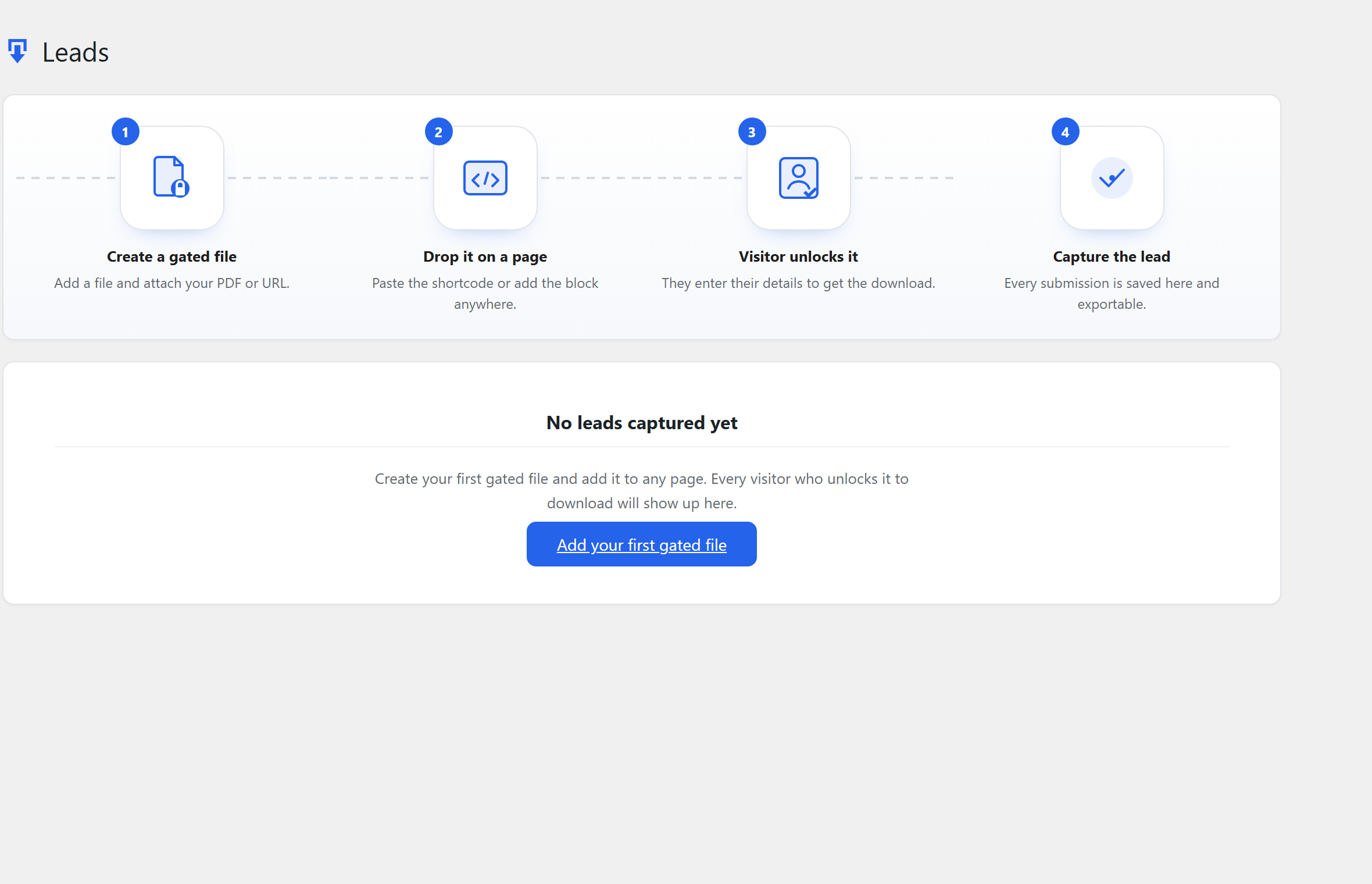
Click Export CSV to download all leads (formula-injection-safe) for your CRM or spreadsheet. Search narrows the list by name, email, phone, or file title.
Campaign tracking New in 1.3.0
Every lead now records where it came from: utm_source, utm_medium, utm_campaign, utm_term, utm_content, and the referring site. Attribution is captured on the visitor's first page and kept for the session, so it survives them browsing around before they convert.
Values appear in the Details column and as four new CSV columns — Source, Medium, Campaign, and Referrer — so you can finally answer “which campaign produced these leads?”. Nothing is stored for visitors who arrive without campaign parameters.
Download counter New in 1.3.0
The plugin counts actual file deliveries, not just form submissions — the two differ whenever someone submits but never opens the file. All-time downloads appear on the Gated Files list, and you can optionally show the count publicly under the button (see Settings).
Once leads start arriving, the top of the screen shows headline stats — total, last 7 days, last 30 days, and your top file — and, when you have more than one form, a filter to view leads from a single form.
Conversion analytics
The plugin automatically tracks three privacy-friendly counters per gated file: button views, form opens, and leads — daily totals only, with no cookies and no personal data, so there is nothing to disclose in a privacy policy. You'll see them in two places:
- A "Last 30 days" column on the Gated Files list — leads captured and the conversion rate for each form (hover for views and opens).
- A funnel strip on the Leads screen — button views → form opens → leads with the overall conversion rate for the last 30 days.
Tracking works even behind full-page caching, because counts are sent by the visitor's browser rather than measured server-side. Pro adds a full analytics card on the Pro dashboard: a 30-day funnel, a leads-per-day trend, and a per-form conversion table.
Pro features Pro
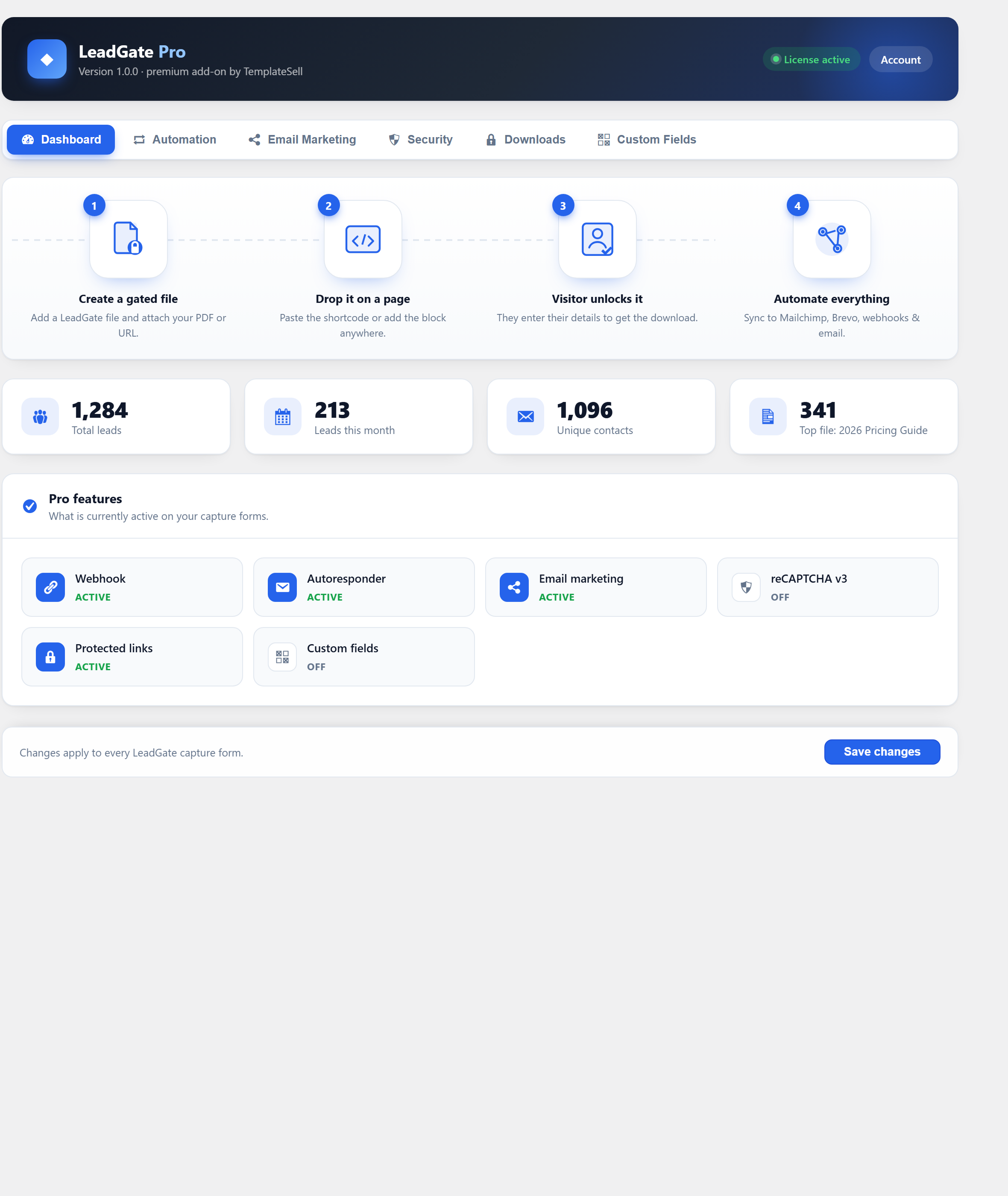
Gated Downloads Pro is a separate add-on that attaches to the free plugin through its hooks — it never modifies free files, so the free plugin can update freely. Pro adds:
| Feature | Description |
|---|---|
| Custom fields | Beyond the free standard set, add unlimited custom fields per form — text, dropdown, and long-text — and every value is saved with the lead. |
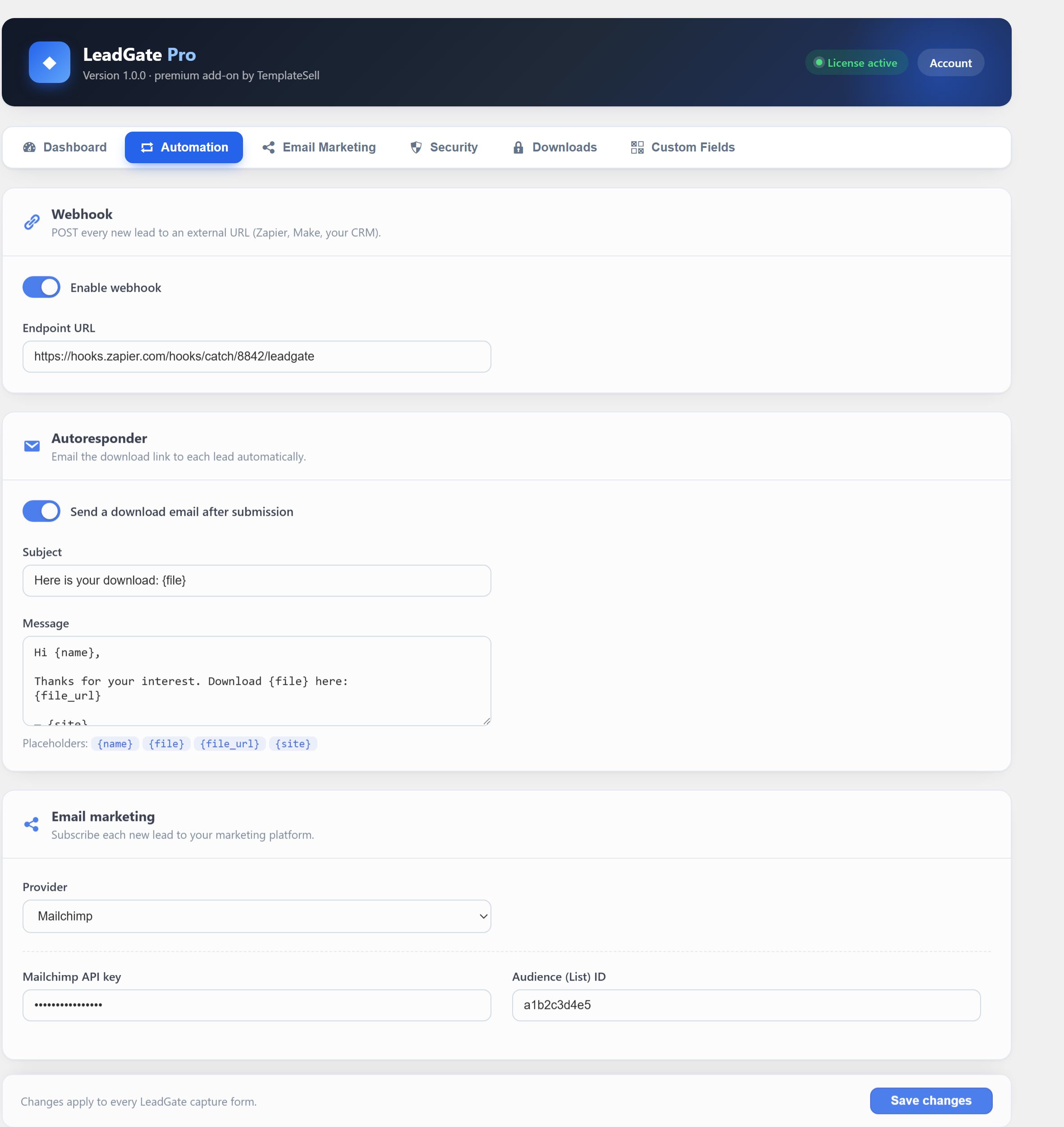
| Autoresponder | Write your own download email — subject and message with {name} {file} {file_url} {site} placeholders. Replaces the free plugin's fixed download email. |
| Zapier | Send every new lead to 7,000+ apps (Google Sheets, Slack, HubSpot…) with a guided Catch Hook setup and a one-click Send test lead button. Each field arrives individually mappable in your Zap. |
| Webhooks | POST every new lead to any URL (Make, your CRM, or any custom endpoint). |
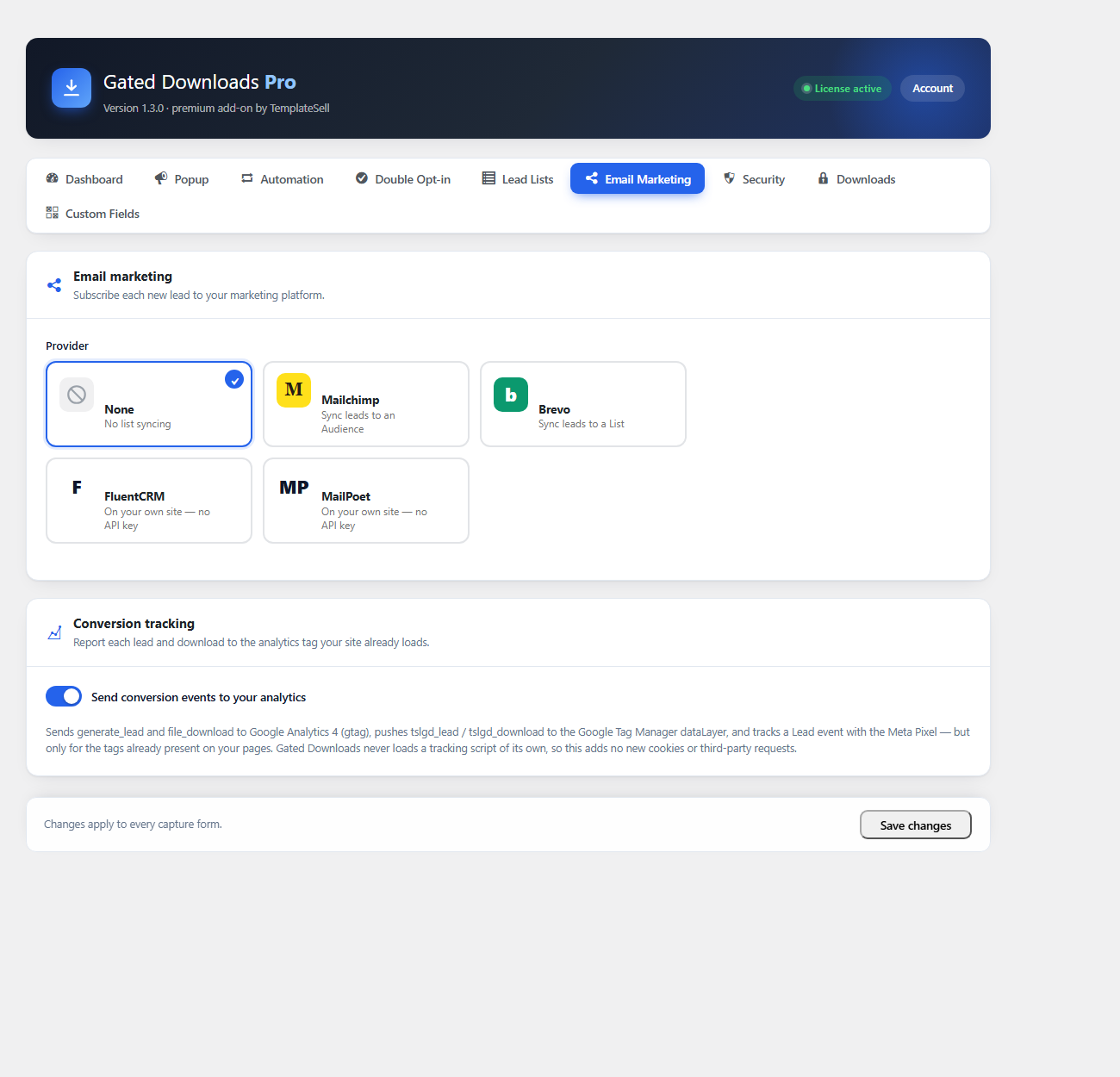
| Mailchimp & Brevo | Subscribe each lead to your chosen email-marketing audience automatically — pick your provider from a simple card selector. |
| FluentCRM & MailPoet New in 1.3.0 | Both run inside WordPress, so there is no API key to paste and no outbound request on submission — just pick a list from a dropdown of your real lists. Each stays dormant if the plugin isn't installed. |
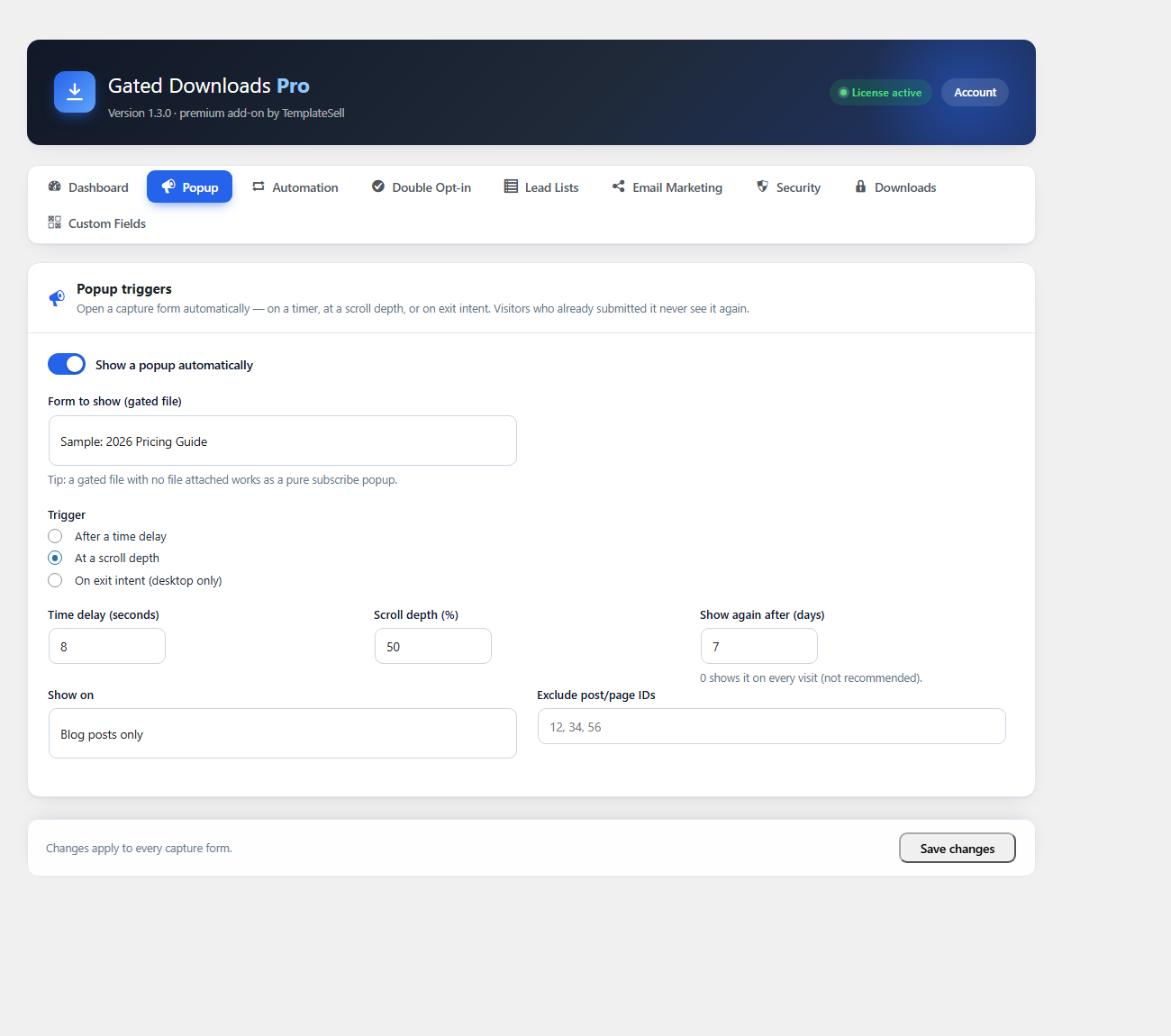
| Popup triggers New in 1.3.0 | Open any capture form automatically — after a time delay, at a scroll depth, or on exit intent. Includes a “show again after N days” frequency cap, page targeting (whole site / posts / pages / homepage, with excluded IDs), and automatic suppression for visitors who already submitted. |
| Double opt-in New in 1.3.0 | Require email confirmation before anything is delivered. The lead is captured immediately, but the download, the download email, and any locked content stay held until the visitor clicks a signed, expiring link. The Leads screen gains a Pending/Confirmed column. |
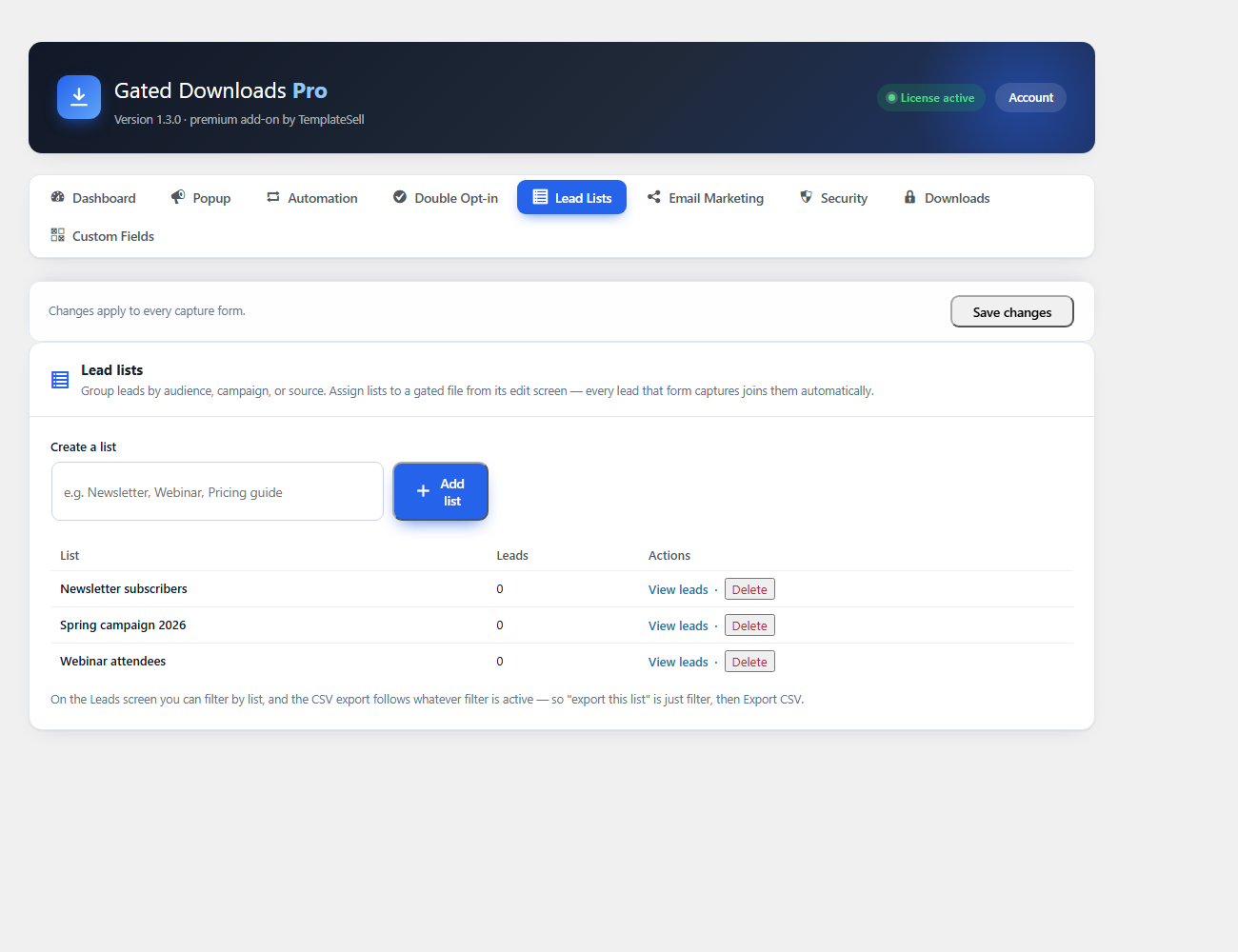
| Lead lists New in 1.3.0 | Group leads by audience, campaign, or source. Assign lists to a gated file and every lead it captures joins them automatically; then filter the Leads screen by list and export just that list. Deleting a list never deletes leads. |
| Conversion tracking New in 1.3.0 | Report each lead and download to Google Analytics 4, Google Tag Manager, and the Meta Pixel. Gated Downloads never loads a tracking script itself — it only speaks to tags already on your pages, so it adds no cookies and no third-party requests of its own. |
| reCAPTCHA v3 | Invisible, score-based spam protection on the capture form. |
| Protected links | Deliver files through signed, time-limited URLs; uploaded files are streamed so the real path stays hidden. |
| Download limits New in 1.3.0 | Cap how many times a protected link may be used. Set it to 1 for a true one-time download, so a forwarded link is worthless. |
| Insights dashboard | A visual dashboard with lead totals, monthly trend, active-feature status, and conversion analytics — a 30-day views → opens → leads funnel, a leads-per-day trend, and per-form conversion rates. |
Try Pro free. Every paid plan starts with a 7-day free trial — no credit card required. If you decide not to upgrade, your site simply reverts to the free plugin and you keep every lead you captured.
Activating Pro Pro
- Install and activate the free Gated Downloads plugin first (Pro requires it).
- Upload and activate Gated Downloads Pro. A new Gated Downloads → Pro dashboard appears.
- Enter your license key under Gated Downloads → Account to unlock updates and support.
- Configure integrations from the Pro dashboard tabs (Automation, Email Marketing, Popup, Double Opt-in, Lead Lists, Security, Downloads, Custom Fields).
If the free plugin is missing or outdated, Pro stays dormant and shows a notice instead of causing errors — so nothing ever breaks.
Developers Free
Gated Downloads is built to be extended without editing plugin files — that is exactly how the Pro add-on attaches. Everything below is part of the free plugin.
Front-end events New in 1.3.0
Two CustomEvents are dispatched on document, so you can react to a capture or a download without touching the plugin's JavaScript:
| Event | Fires | event.detail |
|---|---|---|
tslgd:lead | After a successful submission | { gateId, response } |
tslgd:download | When a file is actually delivered | { gateId, url } |
document.addEventListener( 'tslgd:lead', function ( e ) {
    console.log( 'New lead on gate', e.detail.gateId );
} );
These are the same events Pro's conversion tracking listens to, which is why it can report to GA4 or the Meta Pixel without the free plugin knowing anything about analytics.
PHP hooks
A selection of the most useful ones:
| Hook | Type | Use it to |
|---|---|---|
tslgd_init | action | Run code once the plugin has booted. |
tslgd_lead_created | action | React to a new lead — receives $lead_id and the sanitized $data. |
tslgd_form_config | filter | Change a form's fields and behavior at render time. |
tslgd_field_catalog | filter | Register additional field types. |
tslgd_validate_submission | filter | Add your own validation and reject a submission. |
tslgd_lead_data | filter | Adjust what gets stored with the lead. |
tslgd_delivery_url | filter | Swap the delivered file URL — this is how Pro's protected links work. |
tslgd_submission_response | filter | Alter the JSON returned to the browser after submit. |
tslgd_unlocked_content | filter | Post-process content released by the content locker. |
tslgd_unlock_cookie_ttl | filter | Change how long an unlock lasts (30 days by default). |
tslgd_auto_insert / tslgd_auto_insert_html | filter | Control whether automatic placement runs on a post, and what it outputs. |
tslgd_leads_columns / tslgd_leads_column_content | filter | Add your own columns to the Leads screen. |
tslgd_leads_where | filter | Add conditions to the Leads query — used by Pro's list filter. |
tslgd_export_url | filter | Carry extra parameters into the CSV export. |
tslgd_send_lead_email | filter | Suppress the built-in download email for specific leads. |
tslgd_lead_email_subject / tslgd_lead_email_body | filter | Rewrite the download email in code. |
Because Pro attaches only through these hooks and never edits free files, the free plugin can keep updating without breaking your add-on — and the same is true of your own code.
FAQ
Does it work with my theme and page builder?
Yes. The modal is rendered in the site footer and self-styled, so it works with any theme. The shortcode runs anywhere shortcodes do, including most page builders; the block works in the standard editor.
Where are leads stored?
In a dedicated table in your own WordPress database. Your data never leaves your site (unless you enable a Pro integration that sends it somewhere you choose).
Is it GDPR-friendly?
Gated Downloads offers an optional consent checkbox with custom wording, stores only what you ask for, hashes IP addresses with a salt, and can remove all its data on uninstall. You remain the data controller — pair it with your own privacy policy.
Can visitors bypass the form?
The download is delivered only after a valid submission. For stricter control, Pro's protected links stream files through signed, expiring URLs so the real file path is never exposed.
Will it slow down my site?
No. The capture CSS/JS load only on pages that actually contain a gate, and admin assets load only on Gated Downloads screens.
Does the visitor also get the file by email?
Yes. Besides the instant in-browser delivery, each lead automatically receives a clean email with their download link (switch it off under Settings → Notifications). Pro's autoresponder lets you write your own subject and message with placeholders.
Does it block spam?
Every capture form ships with an invisible honeypot trap that silently blocks most bots — zero configuration, no keys, no visitor friction. Sites under heavier attack can add score-based reCAPTCHA v3 with Pro.
Can I use it as a plain email subscribe form (no file)?
Yes. Leave a gated file's file source empty and the form becomes a simple email opt-in — the email is captured and a success message (or your redirect) shows after submit, with no download. Show just the Email field and label the button “Subscribe”. With Pro, new subscribers can sync straight to Mailchimp, Brevo, FluentCRM, or MailPoet.
Can someone read locked content by viewing the page source?
No. Content inside [tslgd_lock] is never rendered into the page — the page ships with the locked placeholder only, and the real content is fetched separately after a successful submission. This also means a caching plugin cannot accidentally serve unlocked content to the next visitor.
Does the content locker work with page caching?
Yes, and it was designed for it. The page HTML is always the locked version, so it is safe to cache. Unlocking happens in the browser after submit, and returning visitors are recognised the same way — so cached pages and unlocked visitors never conflict.
Will automatic placement duplicate buttons I've already added?
No. Posts that already contain the same gated file — via shortcode or block — are skipped. You can also override the placement per post, or turn it off for individual posts.
Support
Free plugin support is available on the WordPress.org support forum. Pro customers get priority support and updates through TemplateSell.
You can also reach us directly by email:
Including your WordPress version, PHP version, and the theme you're using helps us answer on the first reply.